Sign-In, Roles and Accounts
Control who can sign in to the guardian console, and use four roles to decide what each person can do there.
- Who
- Admins manage accounts, and everyone signs in
- Where
- Manage › People
Sign-In Modes
The guardian's identity service runs in one of two sign-in modes. You choose the mode when you deploy the guardian. See Compliance Profiles.
| Mode | Who holds the accounts | For |
|---|---|---|
| Standalone, the default | The guardian. Every account needs a one-time code, and admins manage accounts in the console. | Sites with no identity provider of their own, and air-gapped deployments |
| Brokered | Your organisation's identity provider. The guardian never holds a password. | Organisations that already have sign-on in place |
Before anyone signs in, the identity service shows the compliance profile's system-use notice, which states the conditions for using the system. The sign-in form appears only after the person confirms that they have read the notice and consent to it.
The notice appears before sign-in to the console and to the identity service's own administration pages. In brokered mode, it also appears before sign-in through your identity provider. All three compliance profiles show the notice, each with its own wording. A person whose session is already open is not asked again.
First Sign-In
On a standalone deployment, a new user first signs in with the temporary password an admin gave them. They set up the rest of the account during that first sign-in.
Open the guardian's address in a browser. The sign-in page names the deployment and shows its use notice. It also lists what the identity service asks for, in order: your consent to the system-use notice, when the profile shows one, then your username and password, then a one-time code.
Choose Sign in. The console sends you to the identity service. As the page says,
The console never receives your password.
Roles
The guardian has four roles. Each role can do everything that the role below it can do. Give each person one role.
| Admin | Manager | Auditor | User | |
|---|---|---|---|---|
| Read the deployment, realms, machines, telemetry and the blocks in force | ✓ | ✓ | ✓ | ✓ |
| Read the renewal record, flow records, the PQC inventory, People and the control activity | ✓ | ✓ | ✓ | — |
| Read certificates, authorities, watched endpoints and their record | ✓ | ✓ | ✓ | — |
| Read the audit area: tests, controls, evidence, reviews and audits | ✓ | ✓ | ✓ | — |
| Commission machines, download a manifest again, and revoke | ✓ | ✓ | — | — |
| Set the networks a machine serves | ✓ | ✓ | — | — |
| Issue a control credential for Networks, with console control off | ✓ | ✓ | — | — |
| Issue and renew certificates, and watch and probe TLS endpoints | ✓ | ✓ | — | — |
| Run the audit tests, and answer auditors' requests | ✓ | ✓ | — | — |
| Block and unblock machines, and read and move their compartments | ✓ | — | — | — |
| Issue a control credential for Block or Compartments, with console control off | ✓ | — | — | — |
| Create, rename and archive sub-realms, and manage accounts | ✓ | — | — | — |
| Revoke certificates, create and change certificate authorities, and publish their revocation lists | ✓ | — | — | — |
| Start and close access reviews, open audits, admit outside auditors and rotate the evidence signing keys | ✓ | — | — | — |
Each role suits a different job:
- Admin shapes the realm tree and decides who can sign in. Give it to people who may shut a machine out of its realm, or change which machines it can exchange data with. Admins also run the certificate authorities, the access reviews and the audits.
- Manager runs the fleet. A manager commissions machines, including bootstrap nodes, and revokes them. Give it to people who may change what your gateways serve. Managers also issue certificates and answer auditors' requests.
- Auditor can read everything but change nothing. Auditors review the control activity, the renewal record, People, the PQC inventory and the audit area.
- User deploys machines with the manifests they are given. A user can read the fleet's telemetry but not its flow records. In the console, a user sees the Overview and Protect.
An auditor from outside your organisation gets a separate, fifth role: outside auditor. It has none of the access that the other four roles have. An outside auditor can read only the audits that an admin adds them to, and only for each audit's period. You grant the role in the identity service. See Audits and Outside Auditors.
No role can change the deployment's settings in the console. To change a setting, edit it on the guardian host and run setup again.
The guardian records every control action, with the person who took it and the address they took it from. See Control Activity.
A person who can sign in but has no role sees only a page that lists the four roles, and nothing of the fleet, until an admin grants them one.
Accounts
On a standalone deployment, admins manage accounts in Manage › People. Setup creates the first admin account, and admins create every later one there. Auditors and above can read it. For a recorded review of everyone's access, see Access Reviews.
Open Manage › People. It lists every account with its role, its state, its last sign-in and the nodes it owns. You can search by name, username or email. You can also filter by All, Active, Pending setup, Locked out or Disabled, or by role. To change a role, choose the pencil in the Role cell. To disable or enable an account, use the button in the State cell. The button appears when you point at the row, and always shows on a touch screen. Other actions are in the row's ⋯ menu.
Manage › People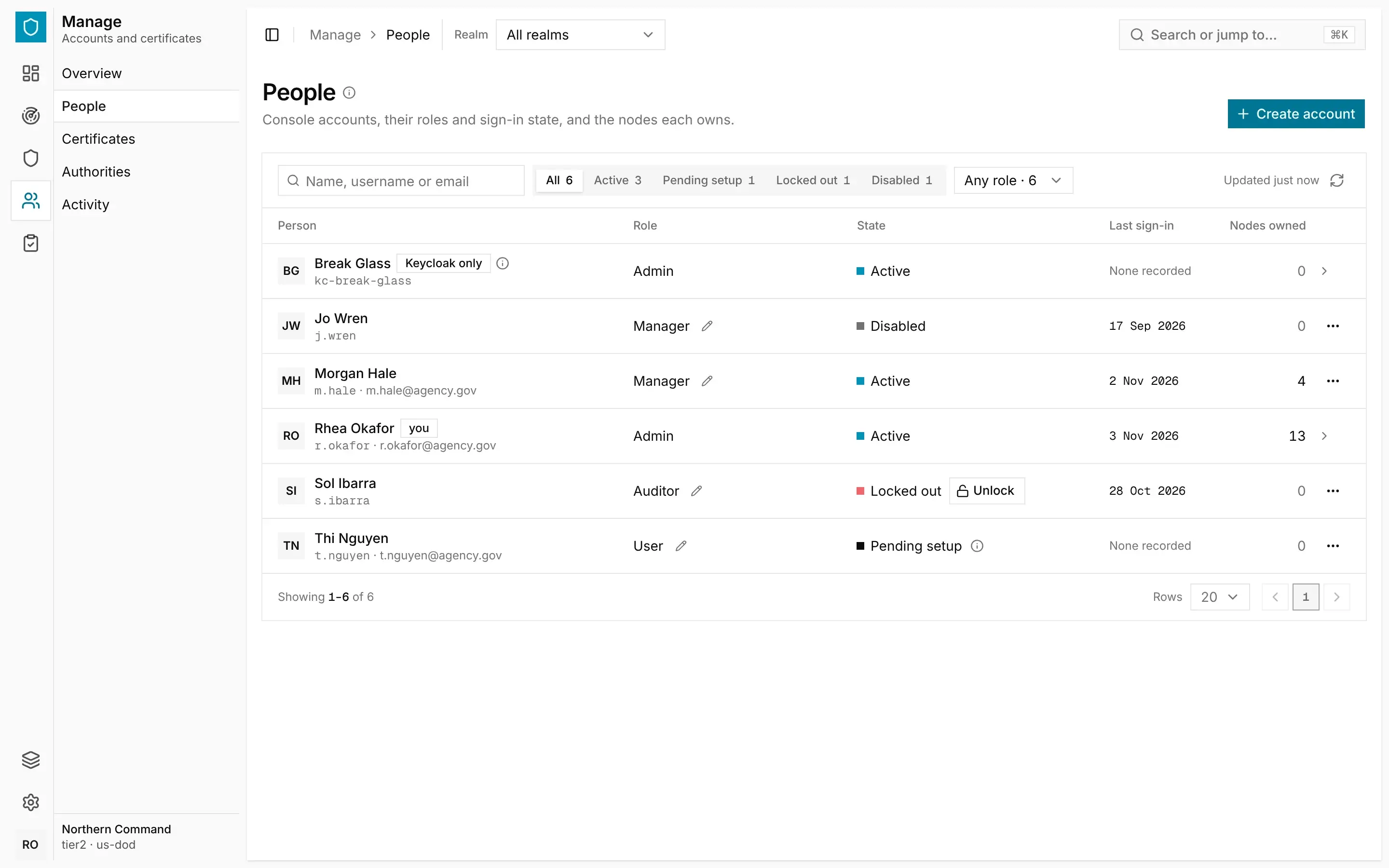
Choose a row to open the person's page. It shows their role, their sign-in details and anything open for them. It also lists the nodes and certificates they own.
Manage › People › Person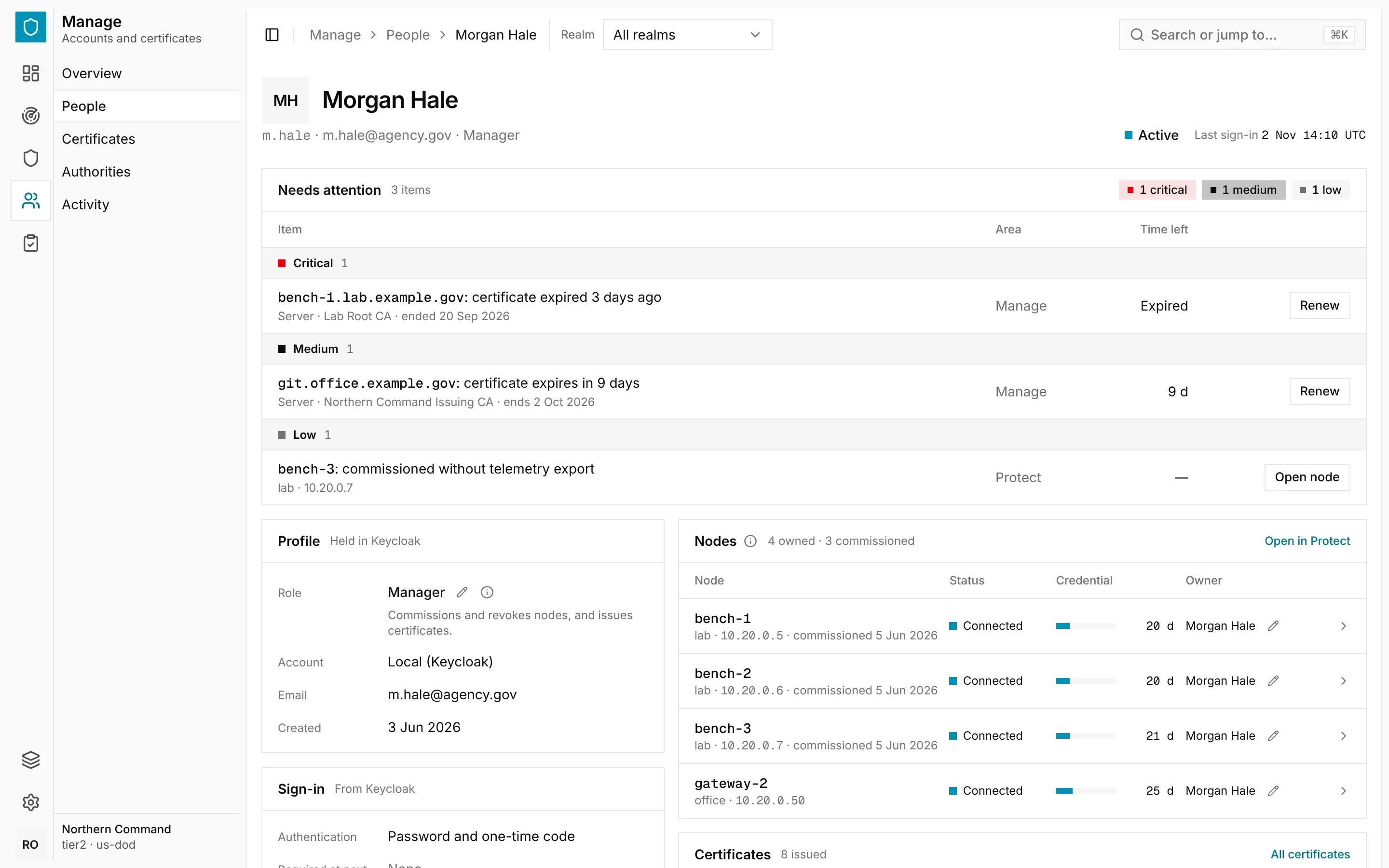
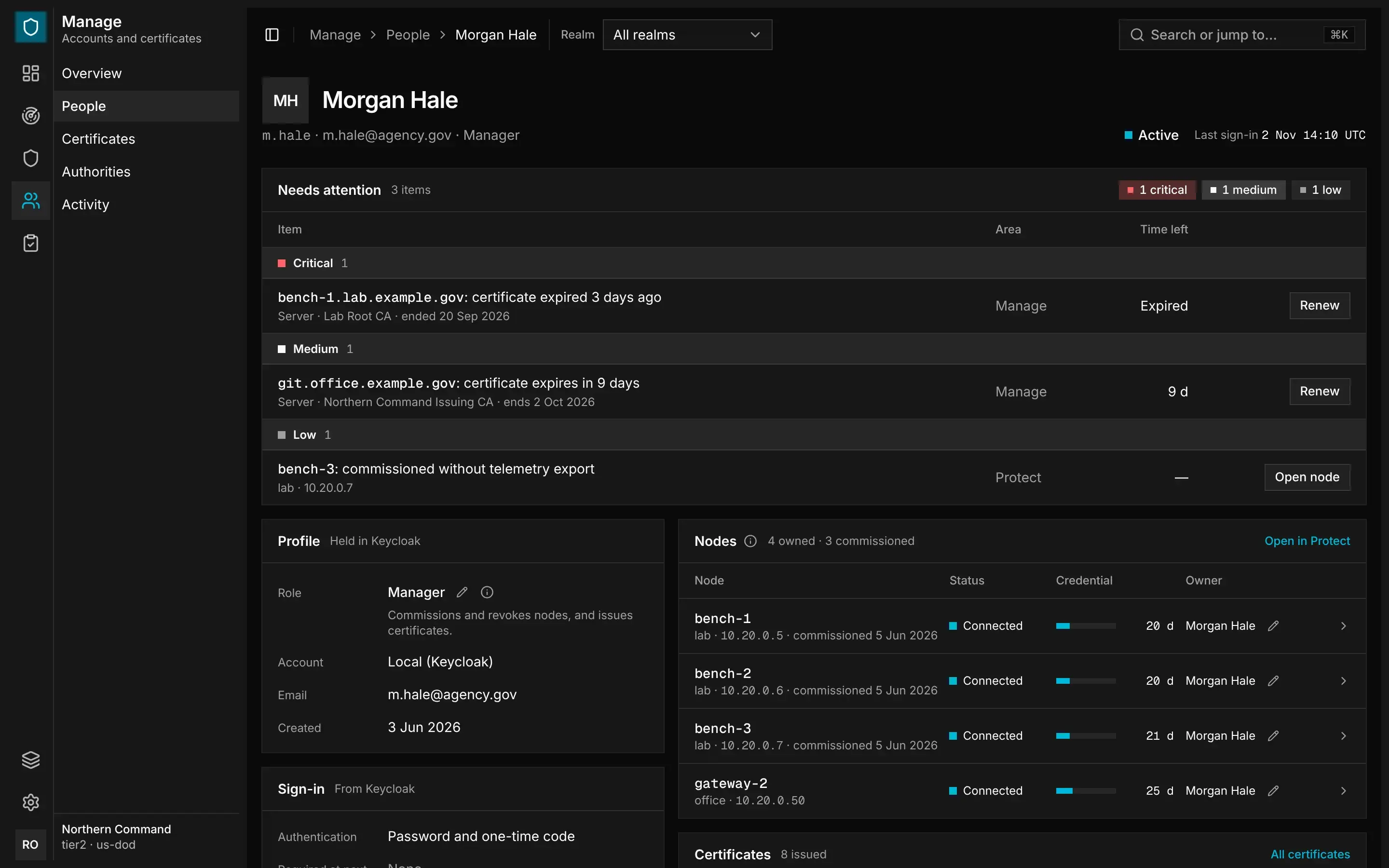
An admin can also reset an account's password or sign the account out everywhere. Disabling, resetting and deleting an account all end its sessions at once.
After too many failed sign-ins, the identity service locks an account out, and People shows it as Locked out. An admin lets the person back in with Unlock, which clears the failed attempts.
Some accounts cannot be changed:
- You cannot change your own account.
- The last enabled admin cannot be demoted, disabled or deleted.
- An account that holds access the guardian did not grant is marked as protected, and the console does not change it.
For each account change, the guardian records the time, the admin, the account, the source address and the role before and after. Manage › Activity lists them with every control and certificate event.
Console Sessions
The console keeps each person signed in only while someone is there. It watches for key presses, clicks, scrolling and touches in any of its tabs, and for a return to its window. If none of these happens within the compliance profile's idle time, it signs you out. One minute before that, it shows Session about to expire. Choose Stay signed in to carry on.
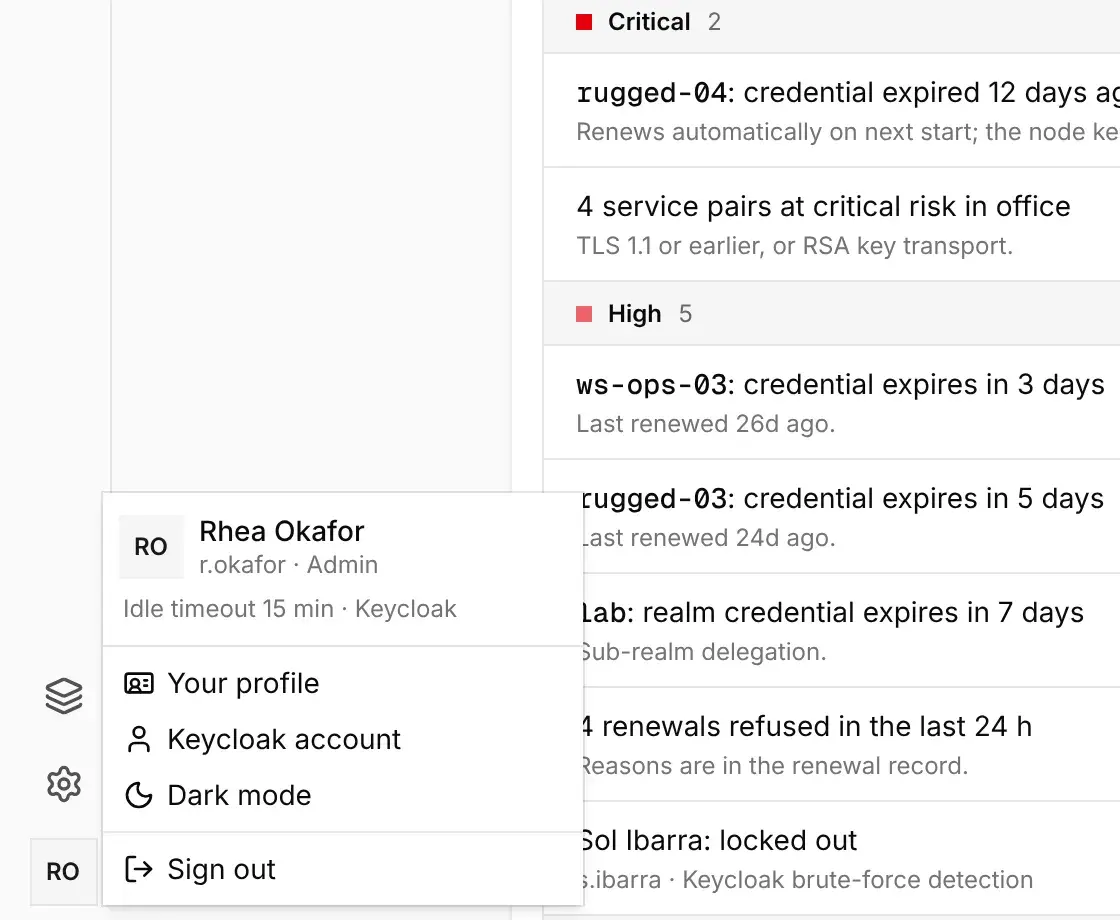
To open the account menu, choose your initials at the foot of the rail. It shows the idle time, such as Idle timeout 30 min under the Australian profile. It also contains Dark mode and Sign out. For auditors and above, it contains Your profile, which opens your account in the identity service.
- A session also ends at the profile's maximum lifespan, or at once when an admin disables the account, resets its password or deletes it.
- The console's server holds the sign-in tokens. The browser holds only a random session id, in a cookie it cannot read from a script.
- If the identity service cannot be reached for a moment, the session continues, and the console tries again.